Wi-Fi Configuration
Wi-Fi Network Configuration Guide
To connect the WTHM device to the internet, you need to configure the available Wi-Fi network information for it, including the network name (SSID) and password of the Wi-Fi AP.
Note
The WTHM device supports IEEE 802.11 b/g/n standard 2.4 GHz band Wi-Fi networks and does not currently support 5G band Wi-Fi networks.
1. Enter Configuration Mode
On the WTHM device panel, simultaneously press and hold the ↑ and ↓ buttons for 3 seconds to enter the Wi-Fi configuration process. After the LCD displays “Entering setup…”, you can release the buttons.
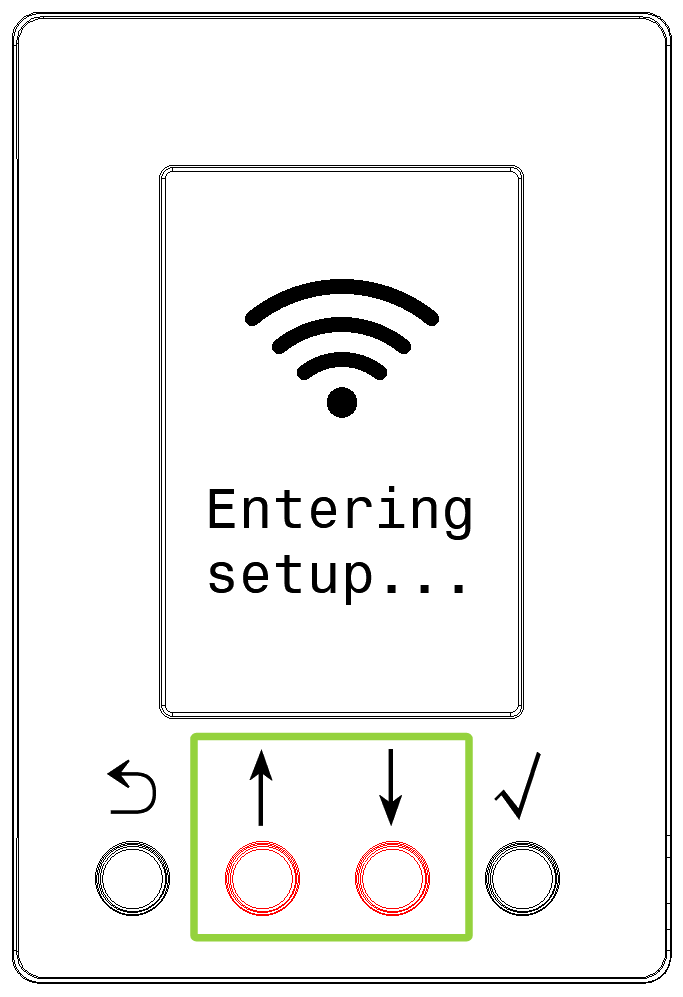
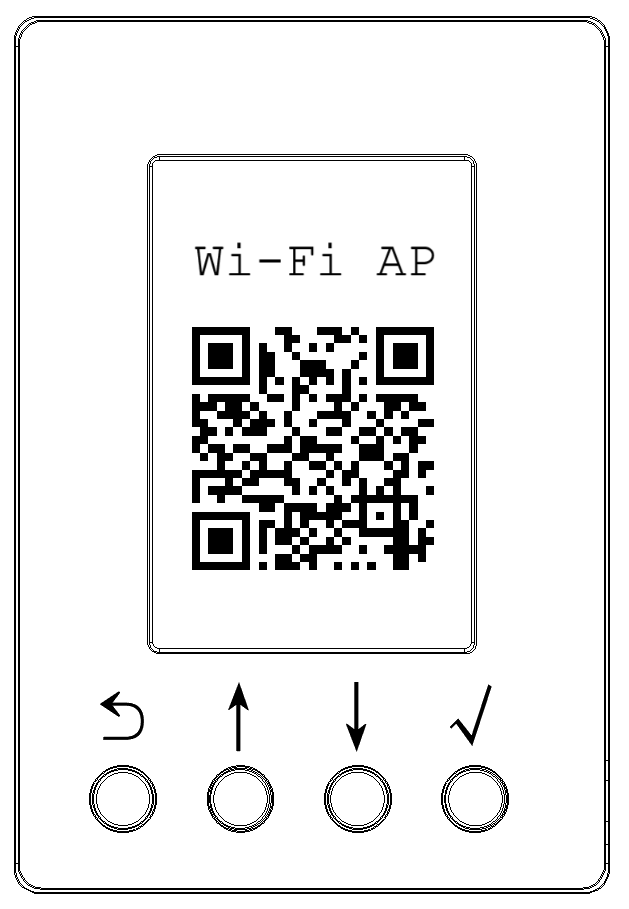
When the LCD displays the Wi-Fi AP QR code, the device has successfully entered Wi-Fi configuration mode.
2. Configure using Mobile Phone (or Pad)
Use your mobile phone (or Pad) to scan the QR code displayed on the device LCD.
Note
Please use the iOS / Android system-level QR code scanning function. Common options include:
QR code scanning function in the native camera app
QR code scanning function in system ⚙️ Settings -> 🛜 WLAN
QR code scanning function in system browsers
If your phone prompts to connect to the 「🛜 WTHM-xxx」 Wi-Fi network during QR code scanning, please select Yes.
After your mobile phone successfully connects to the WTHM device’s Wi-Fi network, most phone systems will automatically redirect to the configuration page.
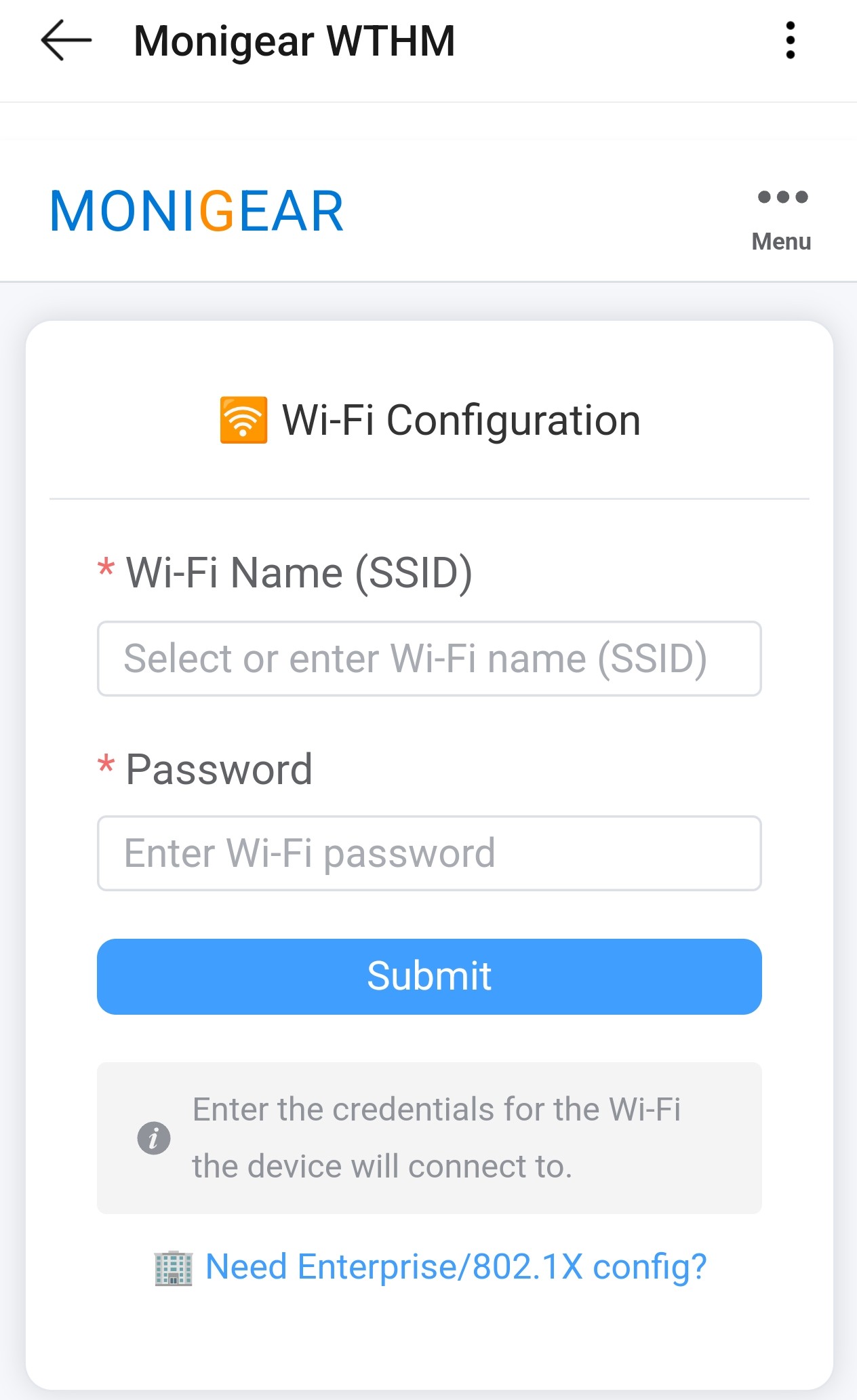
After entering the Wi-Fi network name (SSID) and password that the device needs to connect to, click Submit to submit the configuration.
WPA Enterprise Wi-Fi Configuration
To connect to a wireless network using WPA-Enterprise security authentication, click the “🏢 Need Enterprise/802.1X config?” link at the bottom of the configuration page, or click the Menu in the upper right corner and select WiFi Enterprise to switch to the enterprise Wi-Fi configuration page.
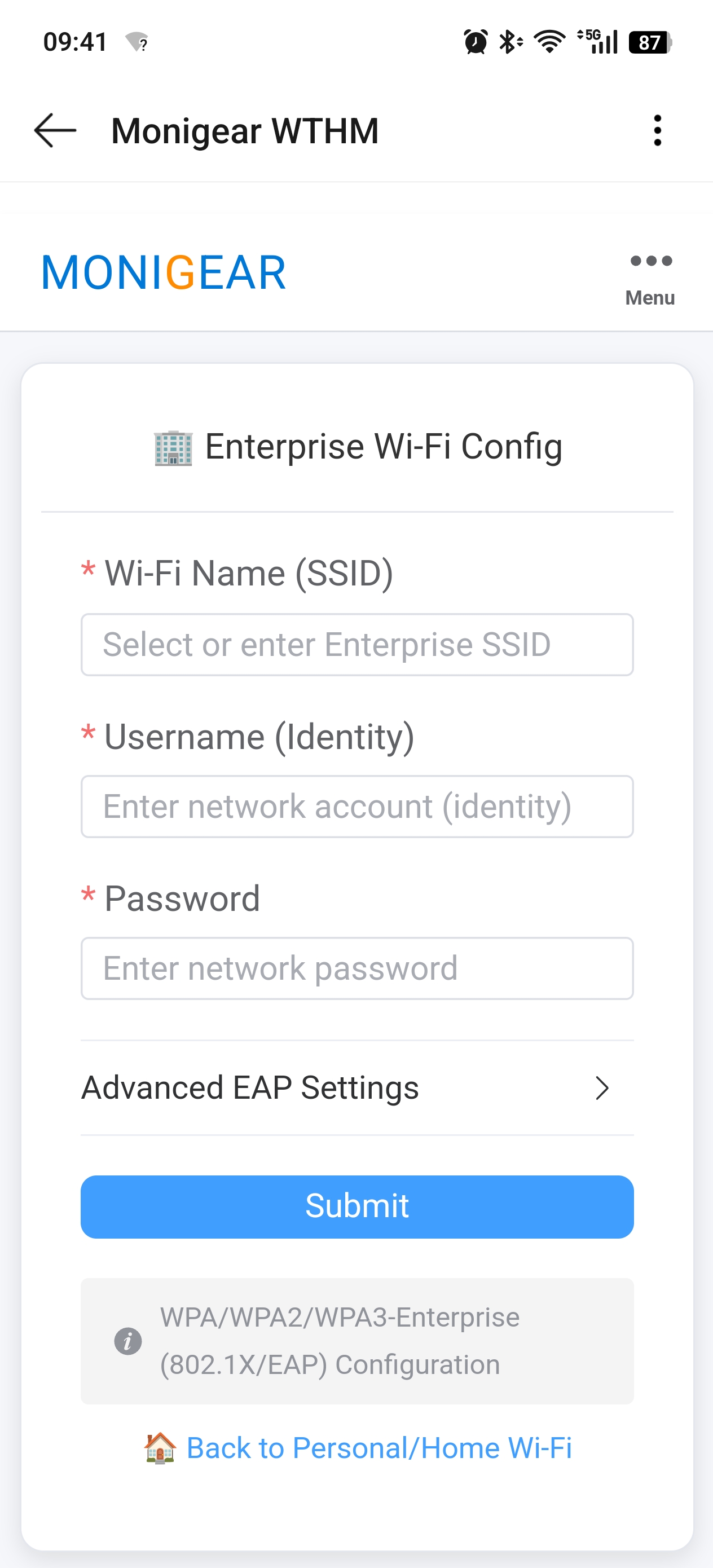
On the enterprise Wi-Fi configuration page, you need to fill in the following information:
Wi-Fi Name (SSID): Select or enter the enterprise Wi-Fi network name
Username (Identity): Enter the network account (identity)
Password: Enter the network password
Advanced EAP Settings: Click to expand advanced EAP settings (if needed)
After filling in the information, click Submit to submit the configuration.
Note
If your phone fails to redirect to the configuration page, please refer to this detailed guide.
3. Check Wi-Fi Connection Status on Device
After completing the configuration, the WTHM device will automatically exit configuration mode and attempt to connect to the configured Wi-Fi network.
You can check the Wi-Fi network connection status on the device LCD screen.
Note
Wi-Fi Authentication Mode Support Information
In standard configuration mode, this product supports the following Personal Security Protocols for Wi-Fi Access Points (AP):
WPA-Personal / WPA2-Personal (based on PSK, Pre-Shared Key)
WPA3-Personal (based on SAE, Simultaneous Authentication of Equals)
WPA2/WPA3 Mixed/Transition Mode
For Enterprise Authentication, such as WPA/WPA2/WPA3-Enterprise (based on 802.1X/EAP), please refer to the WPA Enterprise Wi-Fi Configuration section above for configuration.
For other authentication methods (such as open networks, legacy WEP protocol, etc.), please contact our technical support team for assistance.